
how to log into MT4 trading account easily with these four step-by-step screenshots.
If you’ve just downloaded MetaTrader 4 and can’t figure out how to sign into your live trading account, this simple walkthrough is made exactly for you. Lots of new traders get stuck navigating MT4’s hidden account menu, so we’ve broken every single action into clear steps with matching screenshots to follow along easily. No complicated trading lingo, just plain, straightforward instructions.Many beginners still run into connection failures even after following these four steps to log into MT4 trading account. I’ll share a few quick troubleshooting tips to fix common login issues quickly.
Step 1: Right-Click the Account Panel to Pull Up the Menu
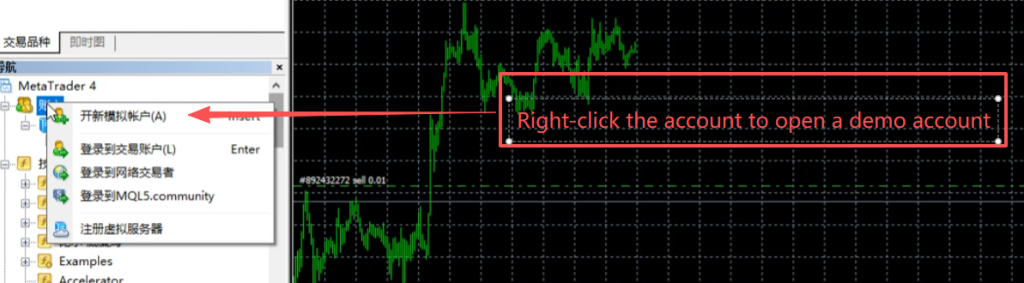
Start by looking at the left-side navigation panel inside your MT4 software. Find the blank accounts section and right-click anywhere inside this box. A pop-up menu will appear right away. You’ll see the option “Open Demo Account” on the list, which launches the server and login setup wizard we need for connecting your trading account. This is the starting point for linking any demo or live broker account to your platform.First, confirm your server address hasn’t expired. Brokers sometimes update their server domains, so log into your broker’s official member area to copy the newest server code if scanning returns empty results. Typing outdated server information is the top reason users fail to connect their MT4 accounts.
Step 2: Input Your Broker Server Address and Tap Scan
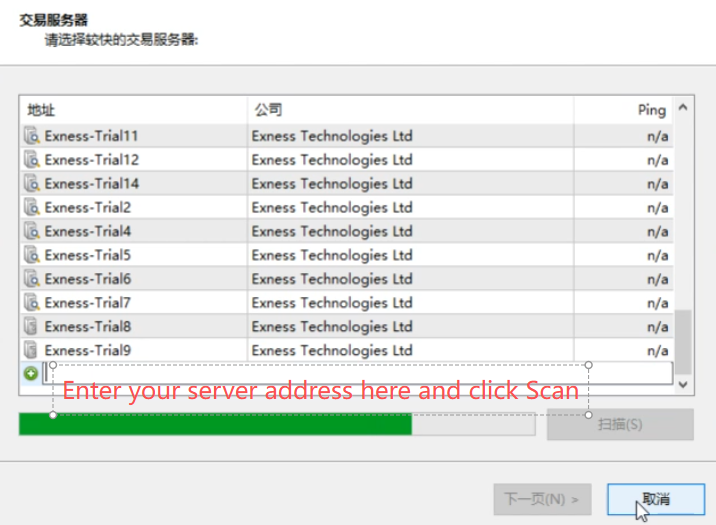
After opening the account wizard, you’ll land on the trading server selection screen. There’s an empty text input box at the bottom of the window. Type the exact server address your broker provided you into this field. Once you finish typing, click the “Scan” button beside the input bar. MT4 will automatically search and load all matching server lines linked to that address within a few seconds.Second, double-check your account ID and trading password. MT4 login boxes are case-sensitive, meaning uppercase and lowercase letters make a big difference. If you copied your password directly from the broker email, avoid accidentally adding extra spaces at the front or end.
Step 3: Pick The Server That Matches Your Trading Account, Click Next
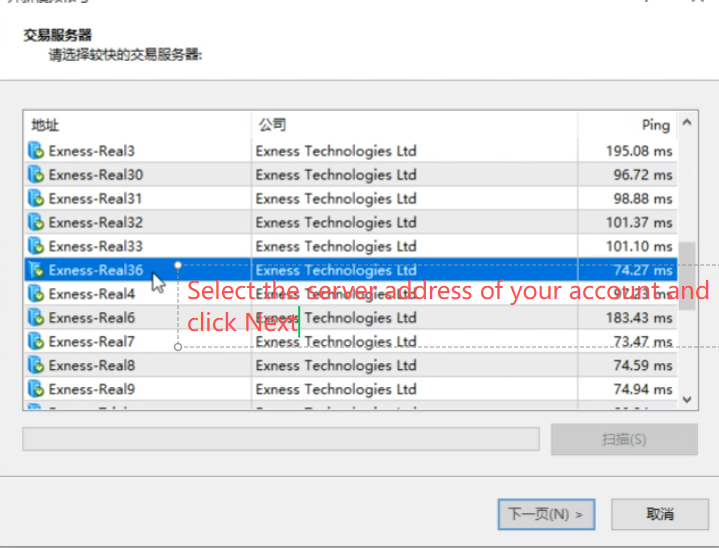
Once the scan finishes, a full list of broker servers will show up on your screen. Carefully scroll through the list and select the server name tied directly to your personal trading account. Pay attention to the ping number shown on the right side—servers with lower ping will deliver smoother chart and trade execution. After selecting the matching server, hit the “Next” button in the bottom right corner to move forward to the login screen.Third, check your internet connection. Unstable Wi-Fi or VPN can interrupt the server scan process before MT4 loads your account data. Switch to a wired network if you keep seeing timeout errors during the login flow.
Step 4: Sign In With Your Existing Account Credentials
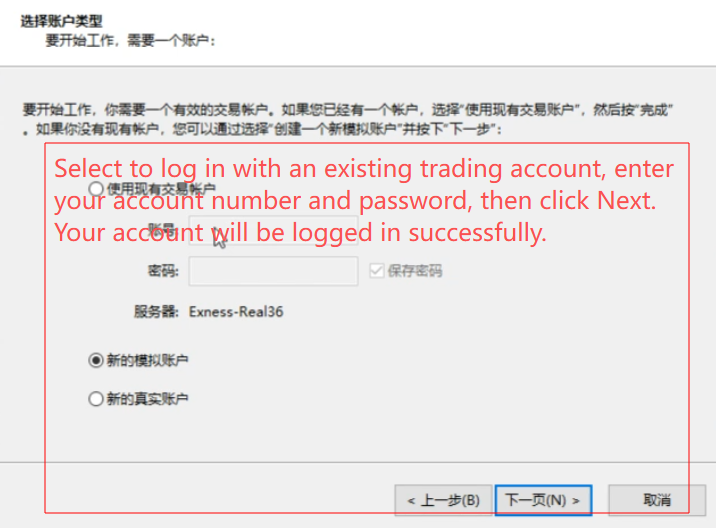
On the final setup page, locate the radio button labeled for logging in with an existing trading account and select it. Fill your unique account ID number into the account input box, then type your secure trading password into the password field. If you want to skip retyping your credentials next time you open MT4, you can tick the save password checkbox. Double-check all details to avoid login failures, then click Next one last time. The platform will instantly connect to your broker server, and your account balance, trade history and live price charts will load fully, meaning you’ve logged in successfully.Once you finish entering all credentials and click Next, your charts, account balance and trade history will load automatically. You have successfully learned how to log into MT4 trading account and can start analyzing forex markets or placing live trades right away. Save your login info if you use this computer regularly to skip repetitive setup steps next time you open MetaTrader 4.