
Intro
Automated forex trading EAs cut down manual trading work, yet most new investors struggle with proper file installation on MetaTrader 4. This unique hands-on guide with screenshots walks you through the whole setup process without complicated technical jargon.
Step 1: Launch MetaTrader 4
Boot up your MT4 desktop application on Windows. Wait for the platform to finish connecting to your brokerage server fully before proceeding.
Step 2: Access MT4’s Core Data Directory
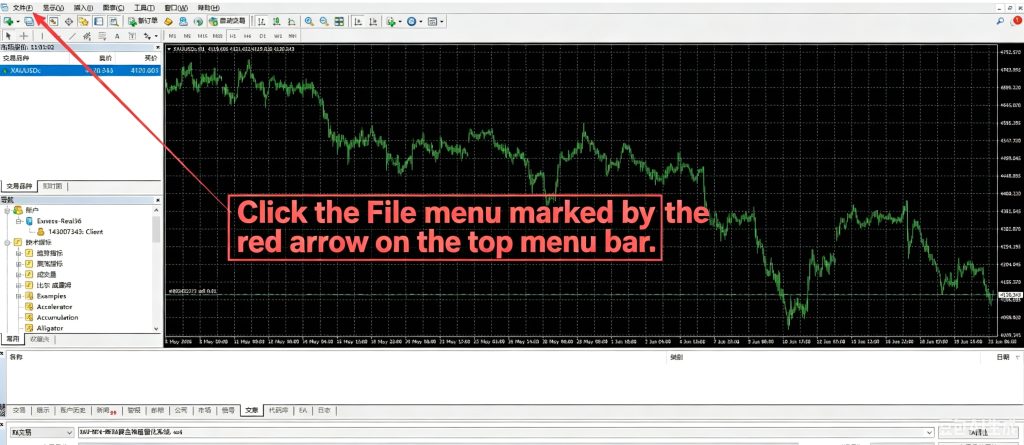
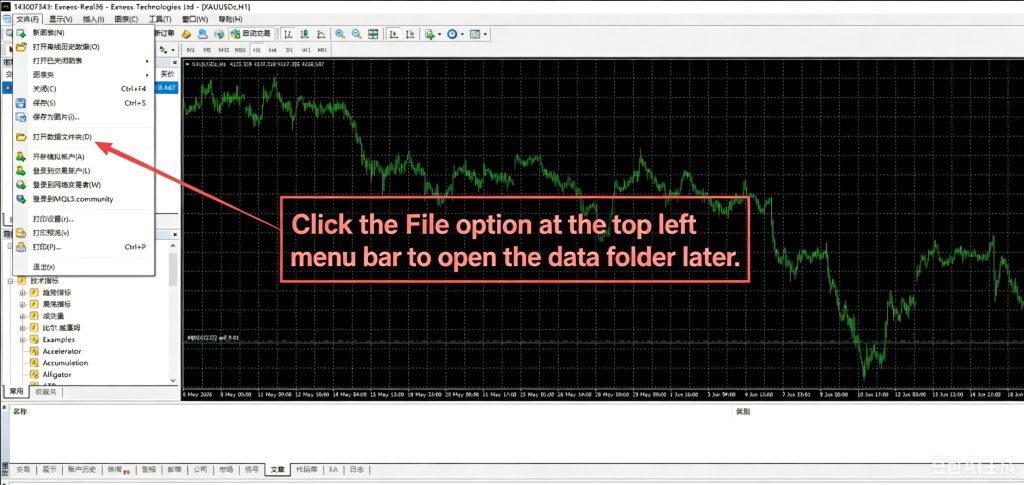
Hit the File tab located on the top navigation bar of MT4, then pick the Open Data Folder option from the dropdown menu. A local file explorer window will pop up instantly.
Step 3: Locate the Experts Directory
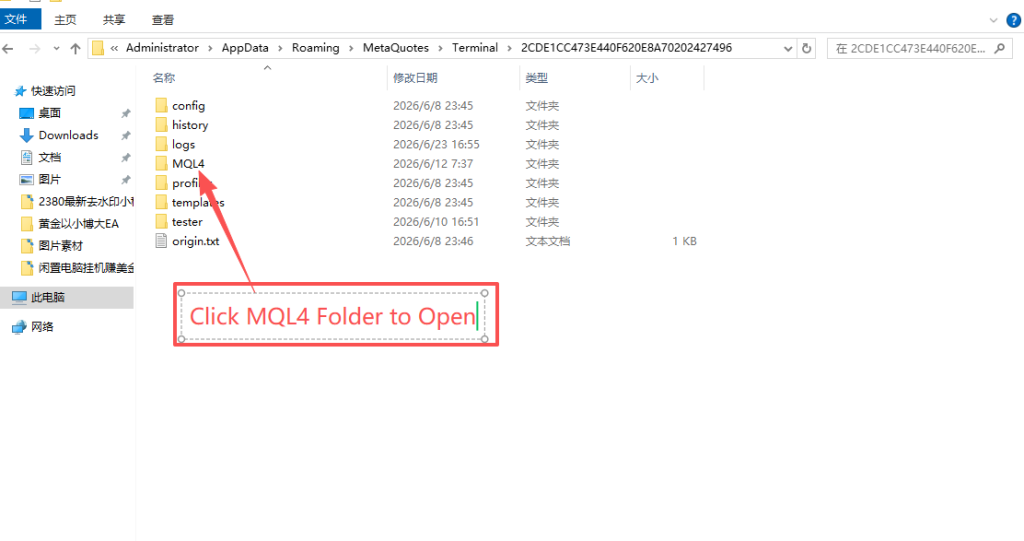
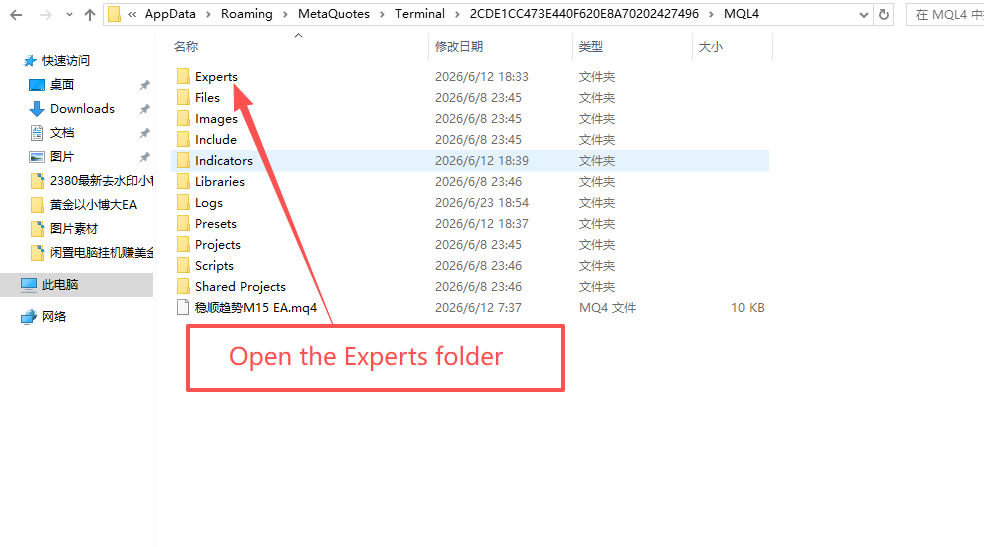
Inside the popped folder, find the MQL4 folder and open it. Next, enter the subfolder labeled Experts — this folder stores all your automated trading robot files.
Important note: Do not create extra subfolders inside Experts, as MT4 will fail to scan your EA files.
Step 4: Transfer Your EA File
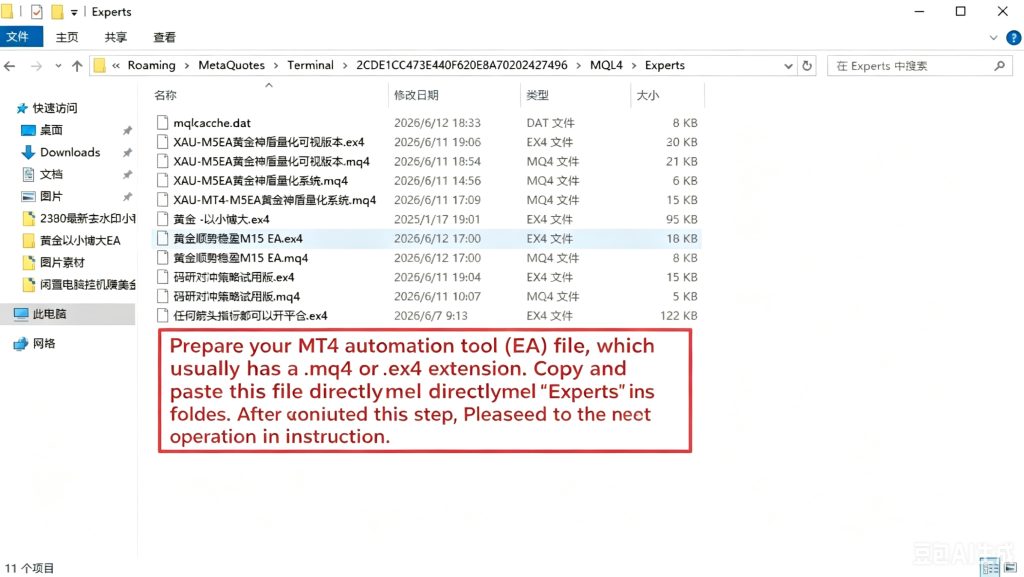
Copy your downloaded .mq4 source file or compiled .ex4 file, then paste it straight into the Experts folder.
Step 5: Reboot MT4 to Refresh Files
Close every MT4 window entirely and relaunch the software. This step lets the platform rescan all robot files you just added.
Step 6: Locate Your EA in the Navigator Bar
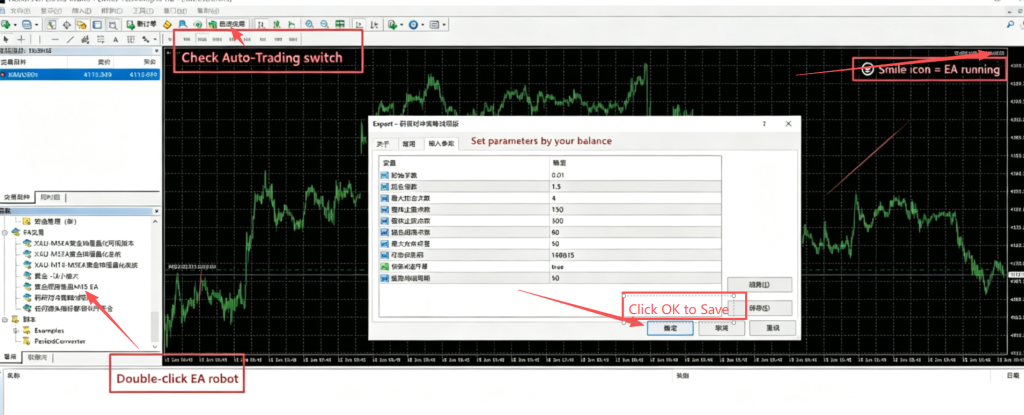
Check the Navigator sidebar on the left of MT4. Expand the Expert Advisors category, and your newly added EA will appear in the list.
Step 7: Bind EA to Your Currency Chart
Click and hold the EA name, drag it onto any forex pair chart like EURUSD or XAUUSD. A configuration pop-up box will appear.
Make sure to tick the box named Allow automated trading at the bottom of the window, then click OK to save settings.
Step 8: Confirm the EA Is Working
A small yellow smiley icon will appear at the top-right of your chart window if the robot runs successfully. A red cross icon means auto-trading permission is disabled.
Frequently Seen Installation Issues & Solutions
- EA missing from the Navigator list
Reason: Wrong file folder placement or skipped MT4 restart. Fix: Recheck the Experts folder and restart the platform again. - Robot cannot open trade orders
Reason: The auto-trading permission box was unchecked. Fix: Re-drag the EA onto the chart and tick the allow automated trading option. - File invalid error
Reason: Your MT4 version does not match the EA’s compiled build. Fix: Download EA files compatible with your MT4 version.
Key Advice for New Traders
Always test any automated EA on a demo trading account first before using real capital. Unstable low-quality robots can lead to unnecessary losses.
Our marketplace provides fully tested, optimized forex EAs built for steady long-term automated trading, you can check our product catalog for reliable tools.